
Inventory Backup
InvBackup is a plugin for Minecraft server administrators that offers a comprehensive solution for backing up and restoring player inventory. Its features allow for both manual and automatic backups, ensuring that players' items are always protected.
📖 Project Overview
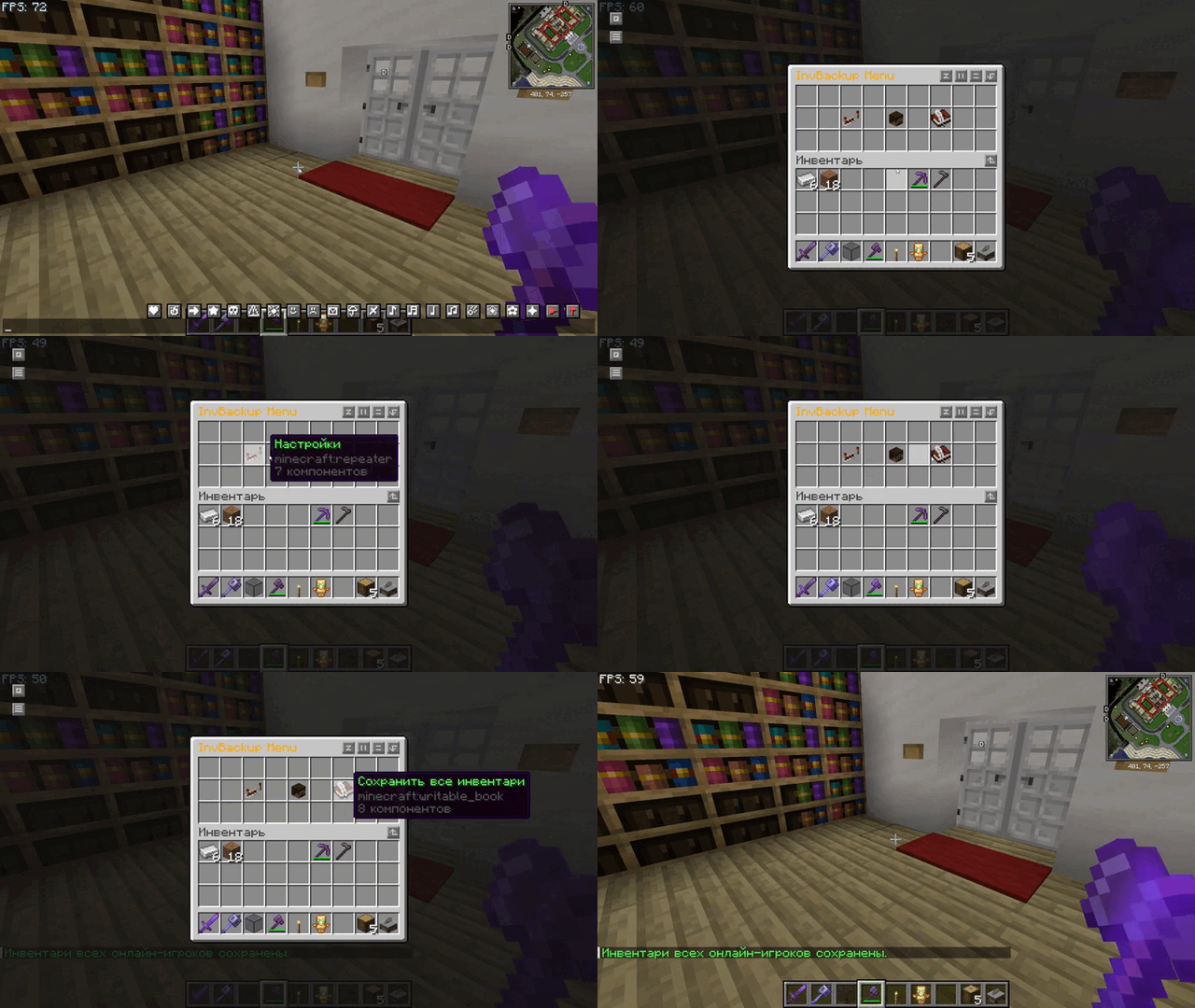
InvBackup is a Minecraft plugin that provides robust inventory backup and recovery functionality for server administrators. The plugin features an intuitive graphical interface (GUI) for easy interaction, allowing administrators to manage and restore player inventories, configure automatic backups, and apply world-specific settings. This ensures seamless protection of player progress, even in the event of server crashes or other issues.
📋 Features
- Graphical User Interface (GUI): Manage and navigate through the plugin's settings, player inventories, and backup versions via an easy-to-use GUI.
- Player Inventory Backup: Allows manual or automatic backups of player inventories.
- Inventory Restoration: Restore a player's inventory from the latest or a specific backup version through the GUI or commands.
- World-Specific Controls: Define which worlds should allow inventory backups or restorations.
- Interval-based Backups: Automatically back up player inventories at configurable time intervals.
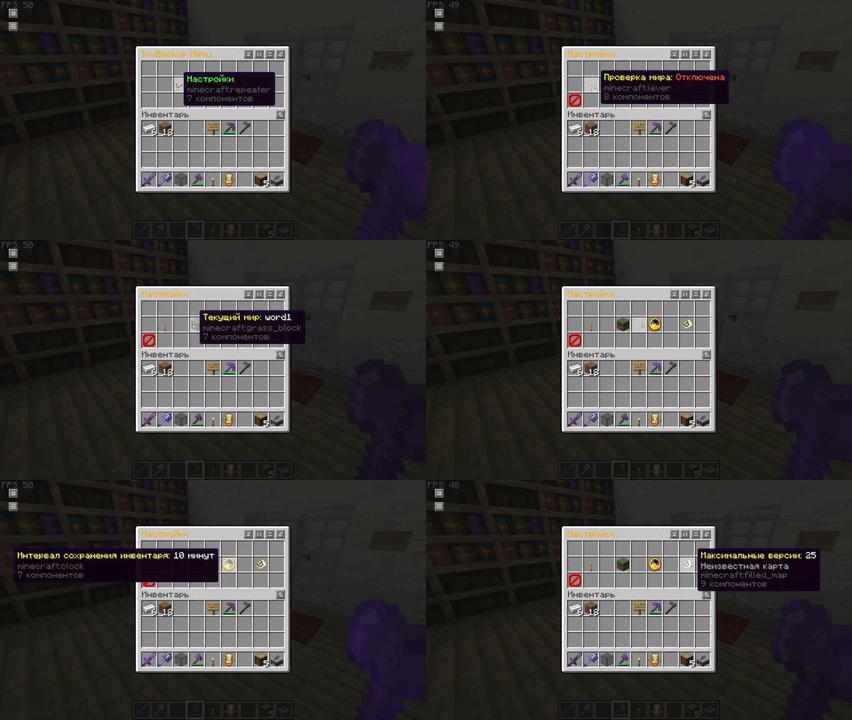
- Customizable Interface: Admins can change backup settings such as intervals, maximum backup versions, and toggle world-specific features directly from the plugin’s GUI.
- Pagination: Navigate player inventory backups and version history through paginated menus, ensuring smooth browsing of multiple backup versions.
Вот обновлённая таблица команд с добавлением команды для открытия интерфейса меню:
🛠️ Commands
The InvBackup plugin offers several commands for managing and controlling player inventory backups and opening menus:
| Command | Description | Usage | Aliases |
|---|---|---|---|
| /invbackup save | Manually save the inventory of a specified player. | /invbackup save <player> | /ib save |
| /invbackup restore | Restore the specified player's inventory from a backup copy. (if no version is specified, the latest save is loaded) | /invbackup restore <player> <version> | /ib restore |
| /invbackup toggleworldcheck | Toggle the world check feature to restrict inventory backups/restores by world. | /invbackup toggleworldcheck | /ib toggleworldcheck |
| /invbackup setworld | Set the world for inventory backup operations. | /invbackup setworld <world> | /ib setworld |
| /invbackup setinterval | Set an automatic backup interval in seconds. | /invbackup setinterval <time> | /ib setinterval |
| /invbackup reload | Reload the plugin’s configuration settings. | /invbackup reload | /ib reload |
| /invbackup saveall | Manually save the inventories of all online players. | /invbackup saveall | /ib saveall |
| /invbackup menu | Opens the main InvBackup menu interface where admins can navigate various options such as settings, player inventories, and more. | /invbackup menu | /ib menu |
Highlights:
- Backup Intervals: Automatically create backups at regular intervals to ensure data integrity.
- World-Specific Behavior: Enable or disable backups for specific worlds.
- Manual Control: Admins can initiate backups and restores as needed for individual players
🔑 Permissions
The plugin uses a straightforward permission system that controls access to various features, both in the GUI and via commands.
| Permission | Description | Default |
|---|---|---|
invbackup.admin | Full access to all backup and restore features, including GUI settings. | OP |
Permission Breakdown:
invbackup.admin: This permission grants full control over the plugin, allowing players with this role to manage inventories, backups, restores, and settings through both commands and the GUI.
⚙️ Configuration File
The InvBackup plugin generates a configuration file (config.yml), allowing server administrators to customize key settings such as backup intervals and world checks. Changes can be made directly in the file or through the GUI.
Example configuration:
save-interval: 600
check-world: true
world-name: world
max-versions: 100
Key Configuration Options:
save-interval: Defines how often (in seconds) automatic backups are made. Default is600seconds (10 minutes). Can be changed with/invbackup setinterval <time>.check-world: Enables or disables world-specific checks for inventory backups and restores. Default istrue. Can be toggled using/invbackup toggleworldcheck.world-name: Sets the name of the world where inventory backups and restores are allowed. Default isworld. Can be changed with/invbackup setworld <world>.max-versions: The maximum number of backup versions to store for each player. Once this limit is reached, the oldest versions are deleted. Default is100.
Admins can modify these values either directly in the configuration file or through the corresponding commands. After making changes to the configuration, use
/invbackup reloadto apply them.
🖥️ Graphical Interface Overview
-
Main Menu:
- Accessible via
/invbackup menu, providing links to player inventories, settings, and the option to save all players inventories.
- Accessible via
-
Settings Menu:
- Modify key settings such as backup intervals, world checks, and the maximum number of backup versions using a toggleable GUI interface.
-
Player Inventory Menu:
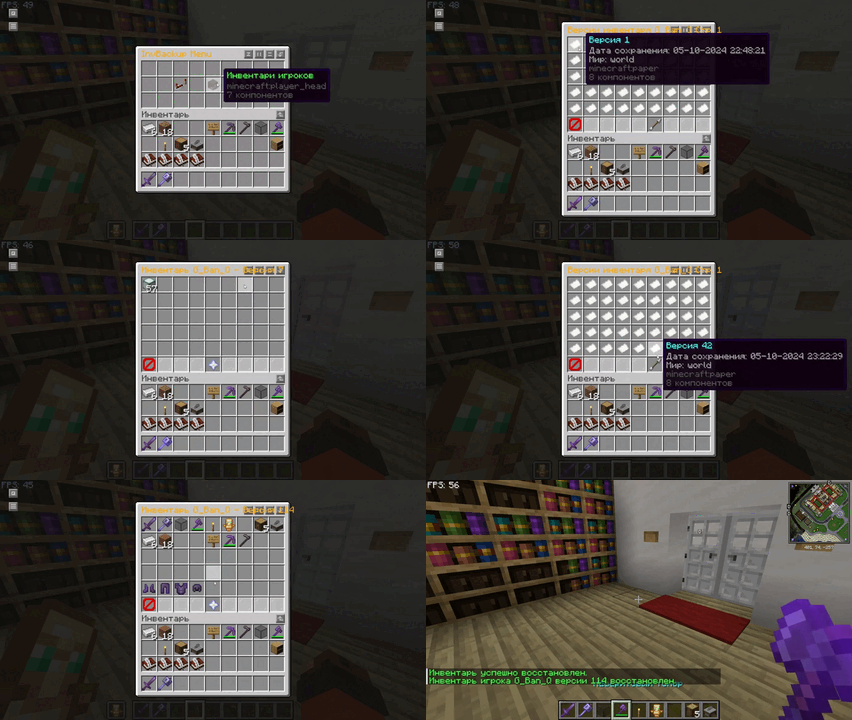
- View player heads and select a player to view or manage their inventory backups. View and restore player saves, switch between different saved settings, and organize player inventory backups in an easy-to-use interface.
-
Inventory Versions:
- View previous versions of a player's inventory and select versions to restore, with pagination for easy navigation of large backup histories.
-
Restore Menu:
- Restore a player's inventory directly from the selected version via the GUI by selecting the appropriate option.
🚀 Quick Start Guide
-
Install the Plugin: Download the
.jarfile and place it in your server'spluginsfolder. -
Start or Restart the Server: Restart or restart the server to activate the plugin.
-
Set Backup Intervals: Use
/invbackup setinterval <time>or/invbackup menuto configure backup settings to determine how often inventories are automatically saved. -
Backup and restore: Save inventories manually with
/invbackup save <player>or wait for automatic backup and restore them with/invbackup restore <player>. -
Customize World Behavior: Toggle world-specific checks as needed with
/invbackup toggleworldcheck.
