
EnchantedLoom
EnchantedLoom adds a craftable magical loom block that lets players apply any banner pattern and dye colour through a clean wizard-style GUI — no pattern items required.
Designed for survival servers that want banner design to feel rewarding without the tedious material grind.
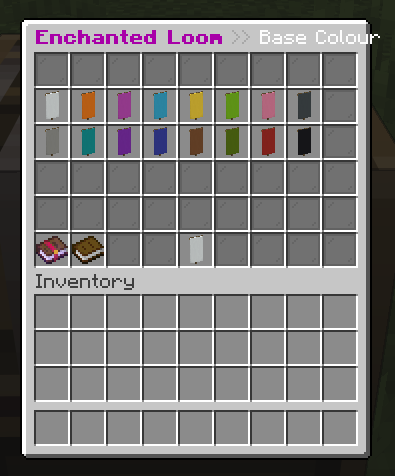
Features
- Wizard-style GUI — step through base colour → pattern → pattern colour, one screen at a time
- Survival-friendly — players trade in a matching blank banner to receive the finished design (configurable)
- Creative bypass — creative mode players are never required to supply a blank banner
- Save & retrieve designs — name and save banner designs per player, persisted across restarts
- Global banners — optionally let all players (or only creative players) browse everyone's saved designs
- Admin banner command — generate any patterned banner via command and give it to any player
- Vanilla loom untouched — only the crafted Enchanted Loom opens the custom GUI; regular looms work normally
- Fully configurable — messages, GUI title, item appearance, layer limits, and survival settings
- Live reload — apply config changes with
/elreload, no restart needed
Crafting
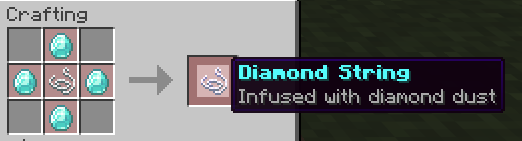
Step 1 — Diamond String — place four diamonds around a piece of string
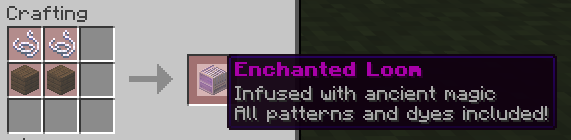
Step 2 — Enchanted Loom — two Diamond Strings on top, two planks on the bottom
GUI
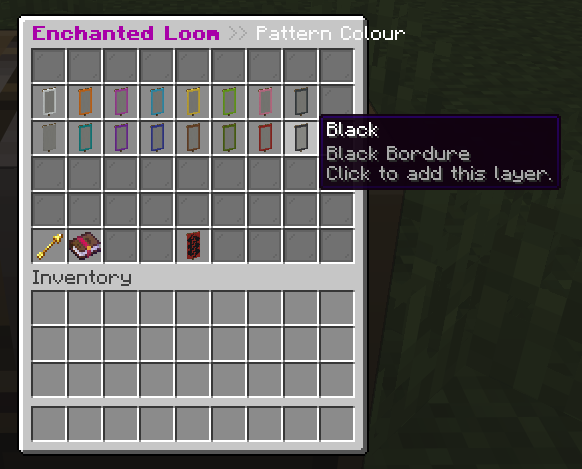
Right-clicking the Enchanted Loom opens a three-step wizard:
- Base Colour — choose the colour of the blank banner
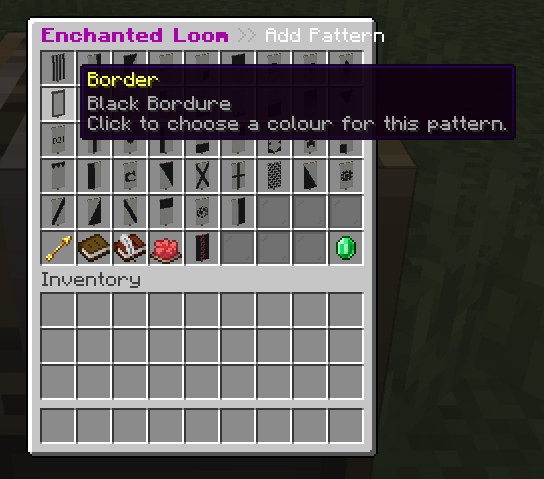
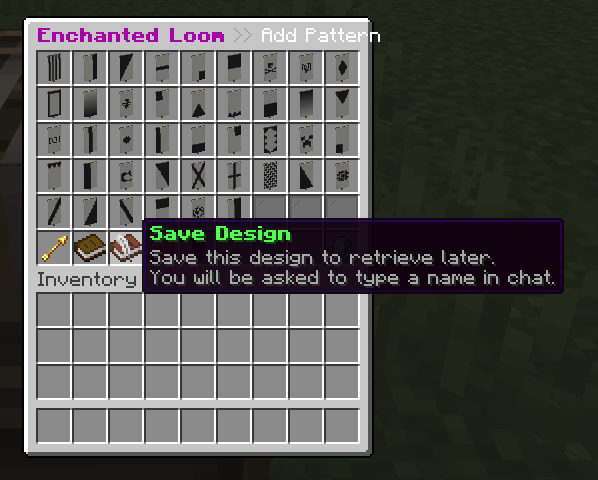
- Add Pattern — browse every available Minecraft banner pattern; hover for a tooltip preview
- Pattern Colour — pick the colour for that pattern layer, then click to add it
Repeat steps 2–3 to layer up to six patterns, then take the finished banner.
Saving Designs
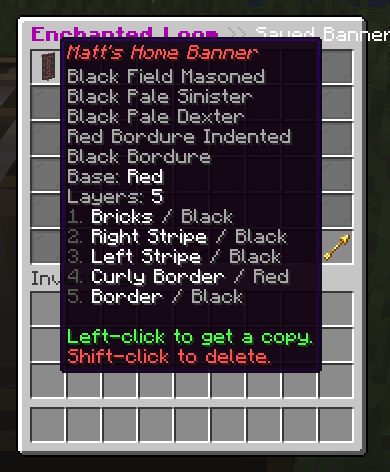
Click Save Design (the book icon) in the pattern picker to name and save your current design via chat. Open the Saved Banners screen at any time — left-click to get a copy, shift-click to delete.
Commands
| Command | Description | Permission |
|---|---|---|
/eloom open [player] | Open the Enchanted Loom GUI | enchantedloom.open |
/eloom give [player] [amount] | Give an Enchanted Loom block | enchantedloom.give |
/eloom banner <base> [pattern:color ...] | Create a patterned banner | enchantedloom.banner |
/eloom reload | Reload the configuration | enchantedloom.admin |
/elopen, /elgive, /elbanner, /elreload | Shorthand aliases | (same as above) |
/elbanner examples
/elbanner red stripe_top:white creeper:gold
/elbanner white gradient:purple gradient_up:light_blue Steve
Permissions
| Permission | Description | Default |
|---|---|---|
enchantedloom.use | Interact with the Enchanted Loom block | everyone |
enchantedloom.open | Open the GUI | everyone |
enchantedloom.give | Give Enchanted Loom blocks | op |
enchantedloom.banner | Generate banners via command | op |
enchantedloom.admin | All of the above + reload + admin delete | op |
Configuration Highlights
| Key | Default | Description |
|---|---|---|
require-blank-banner | true | Survival players must trade a matching blank banner |
max-banner-layers | 6 | Maximum layers on a banner |
global-banners | false | All players can browse every saved design |
global-creative-banners | false | Creative players can browse every saved design |
allow-admin-delete-banners | false | Admins can delete any player's saved design |
item-glow | true | Enchantment glint on the Enchanted Loom item |
patterns-per-page | 27 | Patterns shown per GUI page |
Full source and documentation on GitHub.
Requirements
- Paper 1.21.x
- Java 21+
